How to Install Windows 10 or Windows 11 from Scratch (Clean Install)
A clean install is the best option if you’re setting up a new PC, replacing a drive, or you want a fresh Windows setup without old files and settings. Follow the steps below to create installation media, install Windows, and complete setup.
Step 1 – Back up anything important (if this is an existing PC)
A clean install removes files and apps from the Windows drive. If you’re reinstalling on a computer you already use, copy your important documents and files to an external drive or cloud storage first.
Step 2 – Prepare a USB drive
You’ll need a USB flash drive (commonly 8GB or larger). If it contains files you need, move them elsewhere because the USB will be erased during the creation process.
Step 3 – Create the Windows installation USB
On a working computer, download Microsoft’s Windows installation tool and use it to create a bootable USB for Windows 10 or Windows 11. Follow the tool prompts to select the correct Windows version and USB drive.
Step 4 – Boot the PC from the USB
Insert the USB into the computer where you want to install Windows, then restart it.
To boot from the USB, you may need to open the boot menu during startup (often by pressing keys like F12, F9, ESC, or DEL depending on the device). Select the USB drive as the boot option.
Step 5 – Start Windows Setup
Once Windows Setup loads:
Choose your language, time, and keyboard settings
Click Install now
If you’re asked for a key during installation, you can either enter it now or skip and add it later (depending on your scenario and Windows setup options).
Step 6 – Choose the installation type
Select Custom: Install Windows only to perform a clean installation.
Step 7 – Select the drive and install
Choose the drive/partition where Windows will be installed.
If you’re doing a true clean install, delete the existing Windows-related partitions on the target drive (only if you’re sure you don’t need the data).
Then select the unallocated space and click Next to begin installation.
Windows will copy files and restart several times.
Step 8 – Complete first-time setup
After installation finishes, follow the on-screen setup steps to:
Connect to a network (if prompted)
Create or sign into an account
Choose privacy and device settings
Step 9 – Install updates and drivers
Once you reach the desktop:
Go to Settings > Windows Update
Install all updates and restart if needed
For any missing drivers, use your device manufacturer’s support page if required.
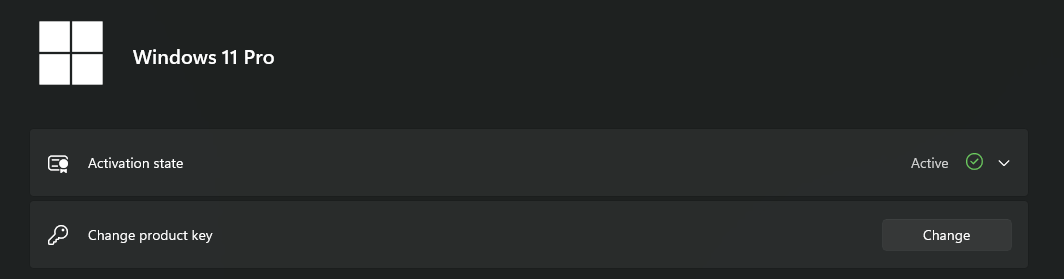
Step 10 – Activate Windows
When you’re ready, go to:
Settings > System > Activation
Enter your activation key if needed