How to Activate Windows Using a Product Key
Activating Windows confirms your installation is properly set up and enables full access to system features. Follow the steps below to activate Windows 10 or Windows 11 using your 25-character product key.
Step 1 – Confirm your Windows edition matches your product key
Before entering the key, make sure your installed edition matches what the key is intended for (for example, Home vs Pro).
To check your edition:
Go to Settings > System > About
Look for Windows specifications > Edition
Step 2 – Open the Activation page
Go to Settings
Select System
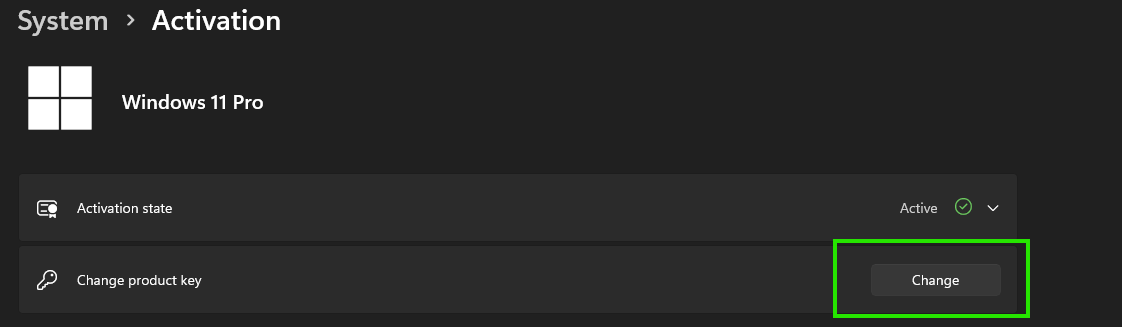
Click Activation
Step 3 – Enter your product key
Click Change product key (or Update product key)
Enter your 25-character product key
Click Next, then follow the prompts
Step 4 – Make sure your PC is online
Activation typically requires an internet connection. If you’re on Wi-Fi, ensure it’s connected. If you use Ethernet, confirm the cable is plugged in and working.Step 5 – Restart if Windows asks you to
Some systems may request a restart after the key is accepted. If prompted, restart your PC and re-check activation status afterward.Step 6 – Confirm activation status
After completing the steps above:Return to Settings > System > Activation
Verify the status shows Active (or similar wording)
If activation doesn’t complete successfully, save the exact error message or code shown on the screen—this helps support resolve the issue faster.
🧩 Troubleshooting Tips
Upgrading from Home to Pro?
You can find a full guide here:
👉 How to Upgrade from Windows to Pro Version